Showing posts with label Usability. Show all posts

Organization - Unit 5 Final Take


The ability to organize content in a way that reduces a student's extraneous load is a very important skill for an instructional designer (p. 123). For this unit I chose to do the Hawaiian Island challenge activity. This was quite a challenge for me as I have very little background in geology/ earth science. The graphic I designed was targeted towards students taking an introductory earth science course. These students are typically at late middle school to early high-school age.

I choose to organise my graphic in a western comic book style (p. 121). In western cultures comic books are read top left to bottom right and time is taken to progress in a top to bottom fashion (i.e. things at the top of the page happen temporally before things at the bottom of the page). The islands are depicted as moving right to left because this is a realistic depiction of the direction of motion of the pacific plate (east to west).

I wanted to give the learner a pathway through the formation of the Hawaiian islands (p. 122). The graphic depicting change over time leads the learner through the learner through the process and helps to depict the process in easy to understand chunks (p. 125). All information is organized on the horizontal plane (p. 128) and related items are located in close proximity to one another (P. 133). Text was used in places where the learner may benefit from additional explanation and in all cases where numbers were used approximations were given because detail was not necessary (p. 139).

Organization - Unit 5 Take 2


Based on comments provided by my partner I have modified the color scheme of this image to correct some issues with depth that were present in the previous iteration of the image. Both the ground and the water have been given textured fill to better illustrate their positions within the image. The font angle was also modified to bring it into the same plane as the ground in an attempt to eliminate the optical illusion that was occurring in the previous version of the image.

A this time I have elected to leave the oldest and newest labels off of the islands themselves because the image appeared cluttered with them. I will instead rely on the time period labels in the top left hand corner of the panels to establish a time line for the learner.

Organization - Unit 5 Take 1


The ability to organize content in a way that reduces a student's extraneous load is a very important skill for an instructional designer (p. 123). For this unit I chose to do the Hawaiian Island challenge activity. This was quite a challenge for me as I have very little background in geology/ earth science. The graphic I designed was targeted towards students taking an introductory earth science course. These students are typically at late middle school to early high-school age.

I choose to organise my graphic in a western comic book style (p. 121). In western cultures comic books are read top left to bottom right and time is taken to progress in a top to bottom fashion (i.e. things at the top of the page happen temporally before things at the bottom of the page). The islands are depicted as moving right to left because this is a realistic depiction of the direction of motion of the pacific plate (east to west).

I wanted to give the learner a pathway through the formation of the Hawaiian islands (p. 122). The graphic depicting change over time leads the learner through the learner through the process and helps to depict the process in easy to understand chunks (p. 125). All information is organized on the horizontal plane (p. 128) and related items are located in close proximity to one another (P. 133). Text was used in places where the learner may benefit from additional explanation and in all cases where numbers were used approximations were given because detail was not necessary (p. 139).

Color and Depth - Unit 4 Final Take

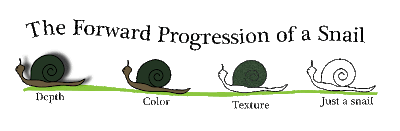
There are several graphical tools at the disposal of the Instructional Designer to aid in capturing or maintaining the attention of the learner. Tools such as color, depth, and space can all aid in the design of an effective visual (p. 265). For this unit I choose to explore these tools using a basic image of a snail. I was not targeting a particular grade level for this exercise rather I chose to explore the tools in a basic manner that is content and grade level independent. Please click on the image for a larger more detailed version.

Starting from the base of a simple shape (p. 254) I created the outline of a snail. From there I explored the use of texture (p. 272), full color (Ch. 11), and depth or dimension (p. 270). Each of these tools had a different effect on my perception of the snail image. The addition of a colored texture to the snail shell called my attention to the shell and also lent it a more three dimensional feel. The texture helped the shell to not appear as flat as it does in the other drawings where only color is used. The use of full color on the third snail helped to draw my attention to the snail and aids in aesthetic appeal (p. 265), however, as is mentioned in the text book color in this situation was not required. In this case color was used to create a visual appeal that calls the viewers attention to the image and aides in selection (p. 266 and 267). Lastly, drop shadow was used to give the snail dimension and the appearance of three dimensionality (p. 272). The addition of the drop shadow give the snail the feeling of depth as well as orientation.

Figure-ground, appropriate use of white space, and scale also factored into the creation of this image. The snails were designed to not result in optical illusion or other confusing visual effects thereby avoiding a figure ground conflict (p. 107 and 108). The snails were all placed in the same plane relative to the ground enhancing the feeling that the snail is moving forward along the ground. This placement also limits issues with figure ground that may have resulted from varying the orientation of the snail relative to the ground. White space was also used in this figure as well as scale. By using a large heading text and a relatively small amount of white space above the snails a sense of scale is conveyed to the viewer (p. 272). I used both of these tactics to convey the smallness of the snails. themselves.

The color scheme chosen for this diagram was inspired by nature (p. 269). As the subject of this diagram was snails I felt that a nature/spring theme was very appropriate for the visual.


Color and Depth - Unit 4 Take 2

Based on comments provided by my partner I have modified the positions of the snails to place them all in the same plane relative to the ground. Placing all the snails in front of the ground enhances the feeling that the snail is moving forward along the ground. It also limits issues with figure ground that may have resulted from the previous orientation of the snails. It was also suggested that a bit of bevel be added to the last snail which is a suggestion that I like a lot, however due to the way my figure was drawn the addition of a bevel in Illustrator does not appear to be possible.


Color and Depth - Unit 4 Take 1

There are several graphical tools at the disposal of the Instructional Designer to aid in capturing or maintaining the attention of the learner. Tools such as color, depth, and space can all aid in the design of an effective visual (p. 265). For this unit I choose to explore these tools using a basic image of a snail. I was not targeting a particular grade level for this exercise rather I chose to explore the tools in a basic manner that is content and grade level independent. Please click on the image for a larger more detailed version.

Starting from the base of a simple shape (p. 254) I created the outline of a snail. From there I explored the use of texture (p. 272), full color (Ch. 11), and depth or dimension (p. 270). Each of these tools had a different effect on my perception of the snail image. The addition of a colored texture to the snail shell called my attention to the shell and also lent it a more three dimensional feel. The texture helped the shell to not appear as flat as it does in the other drawings where only color is used. The use of full color on the third snail helped to draw my attention to the snail, however, as is mentioned in the text book color in this situation was not required, it served no purpose other than to call the viewers attention to the image and aide in selection (p. 266 and 267). Lastly, drop shadow was used to give the snail dimension and the appearance of three dimensionality (p. 272). The addition of the drop shadow give the snail the feeling of depth as well as orientation.

Figure-ground, appropriate use of white space, and scale also factored into the creation of this image. The snails were designed to not result in optical illusion or other confusing visual effects thereby avoiding a figure ground conflict (p. 107 and 108). White space was also used in this figure as well as scale. By using a large heading text and a relatively small amount of white space above the snails a sense of scale is conveyed to the viewer (p. 272). I used both of these tactics to convey the smallness of the snails. themselves.

The color scheme chosen for this diagram was inspired by nature (p. 269). As the subject of this diagram was snails I felt that a nature/spring theme was very appropriate for the visual.

Expressive Words - Unit 3 Final Take


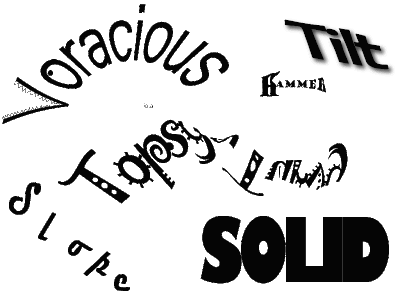
Text in and of itself can express a great deal about the meaning of a word (p. 213). For this unit I choose to design a series of words that express their meaning. As I feel that there is a certain level of universality to word meanings, I was not targeting a particular grade level. I believe that these words might be at an appropriate level for students in elementary school and beyond (please click on image for larger version).

These words take advantage of font types as well as alignment, kerning, and font size. I will go through each word individually.

hammer- In order to convey the feeling and meaning of the word hammer I used a bold serifed font (p. 233) in multiple sizes. The serifs helped to form the outline of the hammer and by adjusting the kerning between the H and the a (the head of the hammer and the start of the handle) the letters appear to form the general shape of the hammer. Using some basic text manipulation I transformed the letters to look like the general shape of a hammer.

iota- For this word I chose a very fine sans serif font and small type size (p. 241) to try and convey the words meaning of small. I also choose to use all lowercase letters to further emphasize the diminutive nature of iota. The contrast (p. 201) in size of this word to the other in the graphic also accentuates the smallness of the word Iota.

slope- Prior to typing this word I drew and imaginary slope. This slope was then used as the baseline (p. 231) for my word. The font I chose was chosen because the serifs on this font give a feeling of movement or directionality that I felt enhanced the feeling of sloping downward.

solid- In order to convey the feeling and meaning of the word solid I used a bold all caps font. The kerning (p. 234) was adjusted between individuals letters to leave just the smallest amount of white space between the letters giving the feeling of a large solid block of letters.

tilt- In order to lend perspective to this word I used the concepts of alignment and contrast (p. 201), in the form of a drop shadow, to lend some depth to this text.

topsy-turvy- I wanted to add a fun word into this mix, so I chose topsy-turvy. To convey the disorganised nature of this word I chose the font Jokerman as the font for 'Topsy~' and a non-serifed rounded font called Hobo for the word Turvy. These two fonts have a fun feel and the use of a simple non-serifed font helped to increases the legibility (p. 227) of the rotated part of the word. The random nature of the font Jokerman also lends a feeling of disorganization to the word.

Voracious- In order to best convey the concept of voraciousness I added a bit of decoration to an already existing font. I chose the font Microsoft Yi Baiti for this word because it had a very open V shape that lent itself well the the formation of a mouth as well as wide counter (p. 231) letter forms. I thickened the stroke on all the letters except the V to give the letters a more weighty feel without closing them off. I wanted to maintain the open feeling of the letters as I think it helps to convey the idea of an empty vessel (or stomach). I felt that all of these traits gave the font a "hungry" feeling and they lent themselves well to some very simple text decoration that help to accentuate the meaning of the word. The tilt and kerning were also adjusted in this word to improve the textual alignment.

This graphic went through several iterations. To view previous versions and my partners comments please either scroll down or click here:


Also part of the process of making this graphic:


Expressive Words - Unit 3 Take 3


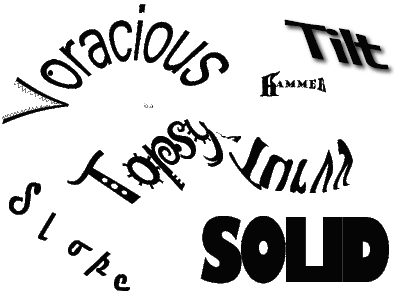
The suggestion fo using two fonts was fantactic! Here is my revised image. I chose to keep Jokerman as the font for 'Topsy~' but changed the font for Turvy to a non-serifed rounded font called Hobo. I think this font still has a fun feel to it but the change increases the legibility of the word overall.


Expressive Words - Unit 3 Take 2

This is my revised image. I made some modification to the word Topsy-turvy as well as voracious based on feedback from my partner. Since Topsy-turvy in essence means to turn upside down, I turned the second half of my word upside down. I am not sure that this font is very conducive to this as I now feel that the word may be too hard to read. I also made some modification to the word voracious. I thickened the stroke on all the letters except the V. I felt that this helped give the letters a more weighty feel without closing them off. I wanted to maintain the open feeling of the letters as I think it helps to convey the idea of an empty vessel (or stomach).

In my last iteration I neglected to do a write-up on the word hammer so I will add it here.

hammer- In order to convey the feeling and meaning of the word hammer I used a bold serifed font in multiple sizes. The serifs helped to form the outline of the hammer and by adjusting the kerning between the H and the a (the head of the hammer and the start of the handle) the letters appear to form the general shape of the hammer. Using some basic text manipulation I transformed the letters to look like the general shape of a hammer.

I also made a short video on the making of this letter which can be seen here: http://jes-edtech506.blogspot.com/2009/07/expressive-words-making-of-hammer.html.

Expressive Words - Unit 3 Take 1


Text in and of itself can express a great deal about the meaning of a word. For this unit I choose to design a series of words that express their meaning. As I feel that there is a certain level universality to word meanings, I was not targeting a particular grade level. I believe that these words might be at an appropriate level for students in elementary school and beyond (please click on image for larger version).

These words take advantage of font types as well as alignment, kerning, and font size. I will go through each word individually.

iota- For this word I chose a very fine font and small text size to try and convey the words meaning of small. I also choose to use all lowercase letters to further emphasize the diminutive nature of iota.

slope- Prior to typing this word I drew and imaginary slope. This slope was then used as the baseline for my word. The font I chose was chosen because the serifs on this font give a feeling of movement or directionality that I felt enhanced the feeling of sloping downward.

solid- In order to convey the feeling and meaning of the word solid I used a bold all caps font. The kerning was adjusted between individuals letters to leave just the smallest amount of white space between the letters giving the feeling of a large solid block of letters.

tilt- In order to lend perspective to this word I used the concepts of alignment and contrast, in the form of a drop shadow, to lend some depth to this text.

topsy-turvy- I wanted to add a fun word into this mix, so I chose topsy-turvy. To convey the disorganized nature of this word I chose the font Jokerman. The random nature of this font lends a feeling of disorganization to the word.

Voracious- In order to best convey the concept of voraciousness I added a bit of decoration to an already existing font. I chose the font Microsoft Yi Baiti for this word because it had a very open V shape that lent itself well the the formation of a mouth as well as very open letterforms. I felt that all of these traits gave the font a "hungry" feeling and they lent themselves well to some very simple text decoration that help to accentuate the meaning of the word. The tilt and kerning were also adjusted in this word to improve the textual alignment.


Usability Testing - Unit 2 Final Take


One of the training modules I teach is called Introduction to Camtasia Studio. This introductory module is geared towards university Faculty and Staff with no prior screen capturing or video editing experience. Because the individuals participating in the course have little or no prior experience with this medium, I would say that the material covered can be a bit challenging and therefor would classify the intrinsic load of this module to be of a medium level.

While I have worked to chunk the content of the module into manageable units, the one spot where people routinely get hung up is with envisioning the process of creating a screen capture from start to finish. This is a major difficulty during the session because people are distracted by the extraneous load of wondering how this screen capture they just created becomes a YouTube video. By creating a process diagram that illustrates the steps involved in going from start to finish I am hoping to increase the student's germane load by providing them with a scaffold for envisioning the production process. This graphic would be presented at the beginning of the session as a session road map and then referred to as we progress from one section to the next. Again, the graphic was designed around a sequence of content that is chunked in accordance with cognitive load theory (Ch. 3) in an effort to provide the learner with an optimal learning load (low extraneous load and high germane load).

I chose rectangles to enclose my content areas and arrows to show the flow from one step to the next (Ch. 10). The rectangles each contain one of the module's four main topics and the topic's accompanying icon. These icons are reused throughout the module for repetition; through reuse these icons function as a working memory rehearsal technique as well as a long term memory cue for the learner (Ch. 3). Each rectangle is connected to the next with an arrow that depicts the flow of the process. The capture and edit rectangles are depicted as part of a cycle because people may need to perform these actions several times before they are ready to move on to the Produce step of the process. Lastly, I arranged my rectangles and title text in a downward staircase pattern because I wanted to imply that the content flows from one part of the process to the next (Ch. 10).

This graphic went through several iterations. To view previous versions and my partners comments please either scroll down or click here:

Usability Testing - Unit 2 Take 2


Thank you for the feedback; this was extremely helpful!!

In this iteration of the graphic I made several changes based on your comments. The icons are all the icons used in Camtasia with the example of the share icon. Unfortunately, there is no sharing icon in the software so I used an icon that is familiar on our campus. I also use this icon during the class so it should be highly recognizable. The icon for the Capture box was from the Camtasia splash screen and the text said "New Screen Recording." I agree with your assessment that the text was distracting as it could not be read. I changed this icon for the recording icon used in other places in the software. Next, I increased the overall size of the font. Like you, I found the text hard to read once I uploaded it to the blog. I think the increase helps with this issue. I also moved the title to accommodate the larger text size. Since I had to break the title across two line I decided to integrate an element of repetition by having the text mimic the shape of the graphic. Finally, I increased the overall size of the graphic (click to see the full size version).

Thank you again! Please let me know if you have any additional thoughts!

Usability Testing - Unit 2 Take 1


One of the training modules I teach is called Introduction to Camtasia Studio. This introductory module is geared towards university Faculty and Staff with no prior screen capturing or video editing experience. Because the individuals participating in the course have little or no prior experience with this medium, I would say that the material covered can be a bit challenging and therefor would classify the intrinsic load of this module to be of a medium level. While I have worked to chunk the content of the module into manageable units, the one spot where people routinely get hung up is with envisioning the process from start to finish. This is a major difficulty during the session because people are distracted by the extraneous load of wondering how this screen capture they just created becomes a YouTube video. By creating a process diagram that illustrates the steps involved in going from start to finish I am hoping to increase the student's germane load by providing them with a scaffold for envisioning the production process. This graphic would be presented at the beginning of the session as a session road map and then referred to as we progress from one section to the next.

I chose rectangles to enclose my content areas and arrows to show the flow from one step to the next. The rectangles each contain one of the module's four main topics and the topic's accompanying icon (the icons are reused throughout the module for repetition and assistance in recall). Each rectangle is connected to the next with an arrow that depicts the flow of the process. The capture and edit rectangles are depicted as part of a cycle because people may need to perform these actions several times before they are ready to move on to the Produce step of the process. Lastly, I arranged my rectangles in a downward staircase pattern because I wanted to imply that the content flows from one part of the process to the next.

Usability Testing


I would estimate that this visual is used for an introductory earth science course at the middle school (6-9th grade) level. While this visual has the foundational basis to be a solid learning tool, the designers appear to have lost interest about halfway through the Diamond Design process (p 89). Spending more time in the ACE process, especially the Evaluate phase of the ACE process, would have been beneficial to this designer as this slide could use improvement in the three Evaluation areas: Effectiveness, Efficiency, and Appeal (p 74). First, the graphic has failed to achieve its goal of effectiveness as the decorative visual (p 6), that was probably an attempt to make the image learner-friendly (p 31), is distracting and this distraction detracts from the slides effectiveness. This decorative visual and text combination is an example of a selection issue (p 81) where the designer has not given due attention to the contrast between the image and the text. This issue might be addressed through the use of a solid colored text box (only one!) and the use of a high contrast color text. The efficacy is also lacking in this image. There is little organization on the slide and I found the poor proximity and alignment of many of the elements in the image to be confusing and distracting (CARP p 80). Proper alignment of the objects with one another through the use of baselines would assist the learner in understanding what information is intended to be associated. Flow and association between objects would also be improved by tightening up the proximity of related objects such as the arrows with their associated texts as currently the arrows are floating in space. Lastly, the appeal of this slide is low due to the above cited issues as well as the use of multiple (poorly) overlapping text boxes. A confusing slide is does not "convince learners that they will understand it" (p 87). To the contrary, a confusing slide de-motivates a learner. A redesign of this slide might look something like the image posted here:


Back to Home Back to Top Multimedia Learning. Theme ligneous by pure-essence.net. Bloggerized by Chica Blogger.